Reply to Intercom conversations from Slack
BackReply is an Intercom + Slack integration with a real reply path: each Intercom conversation becomes a Slack thread, your team answers in the thread, and the reply is delivered back through the Intercom conversation to your customer. Intercom stays your system of record.
One loop, no inbox switching
Notifications alone still make you open Intercom to answer. BackReply completes the loop, so the Slack thread is where the work actually happens.
- Customer writes inIntercom Messenger
- Conversation appears asa Slack thread
- Teammate repliesin the thread
- BackReply syncs it tothe Intercom conversation
- Customer receivesa normal Intercom reply
Status changes sync in both directions too: when a conversation is closed, reopened, assigned, or snoozed—in Slack or in Intercom—the other side reflects it.
The same conversation, on both sides
 Intercom Inbox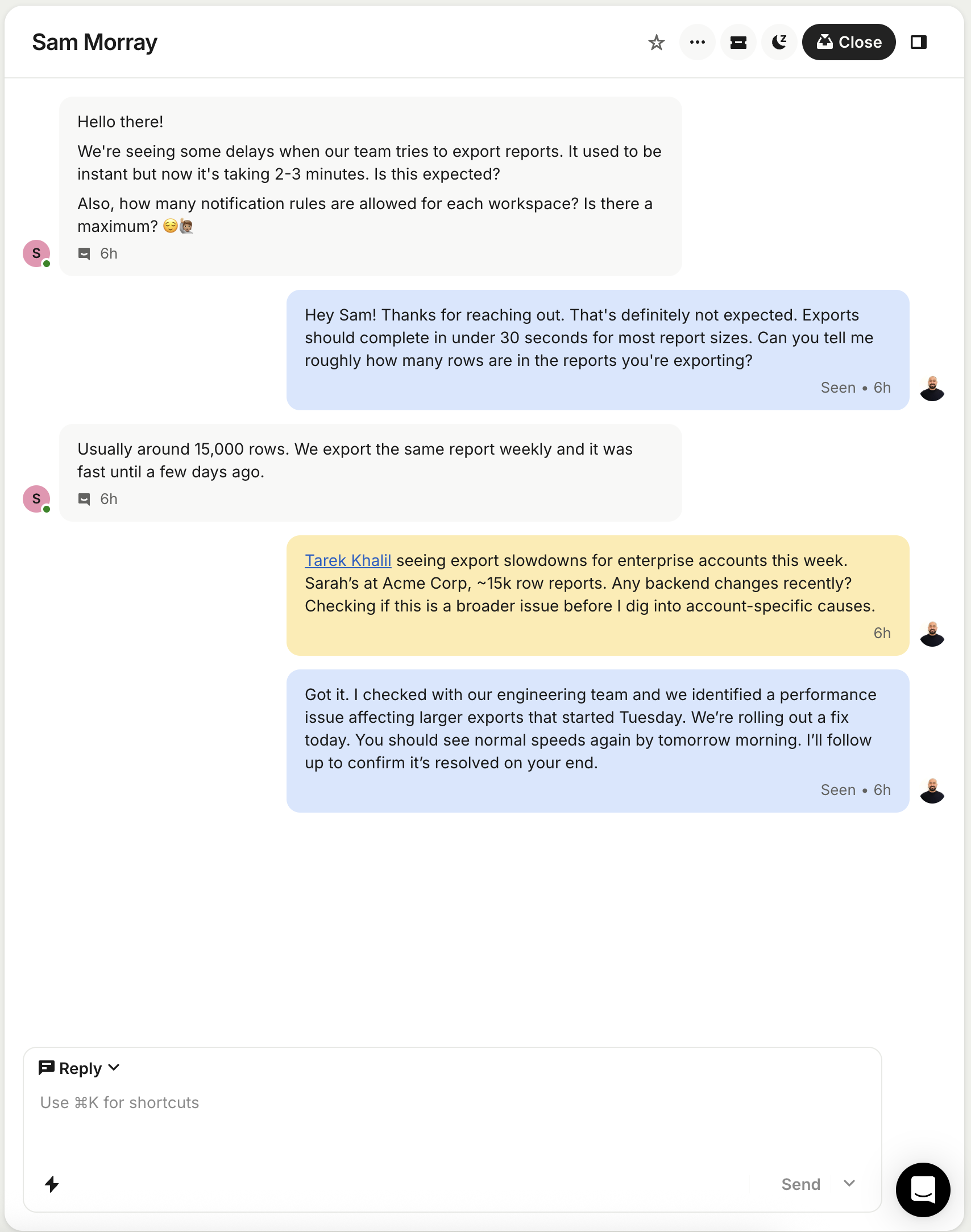
 Slack Thread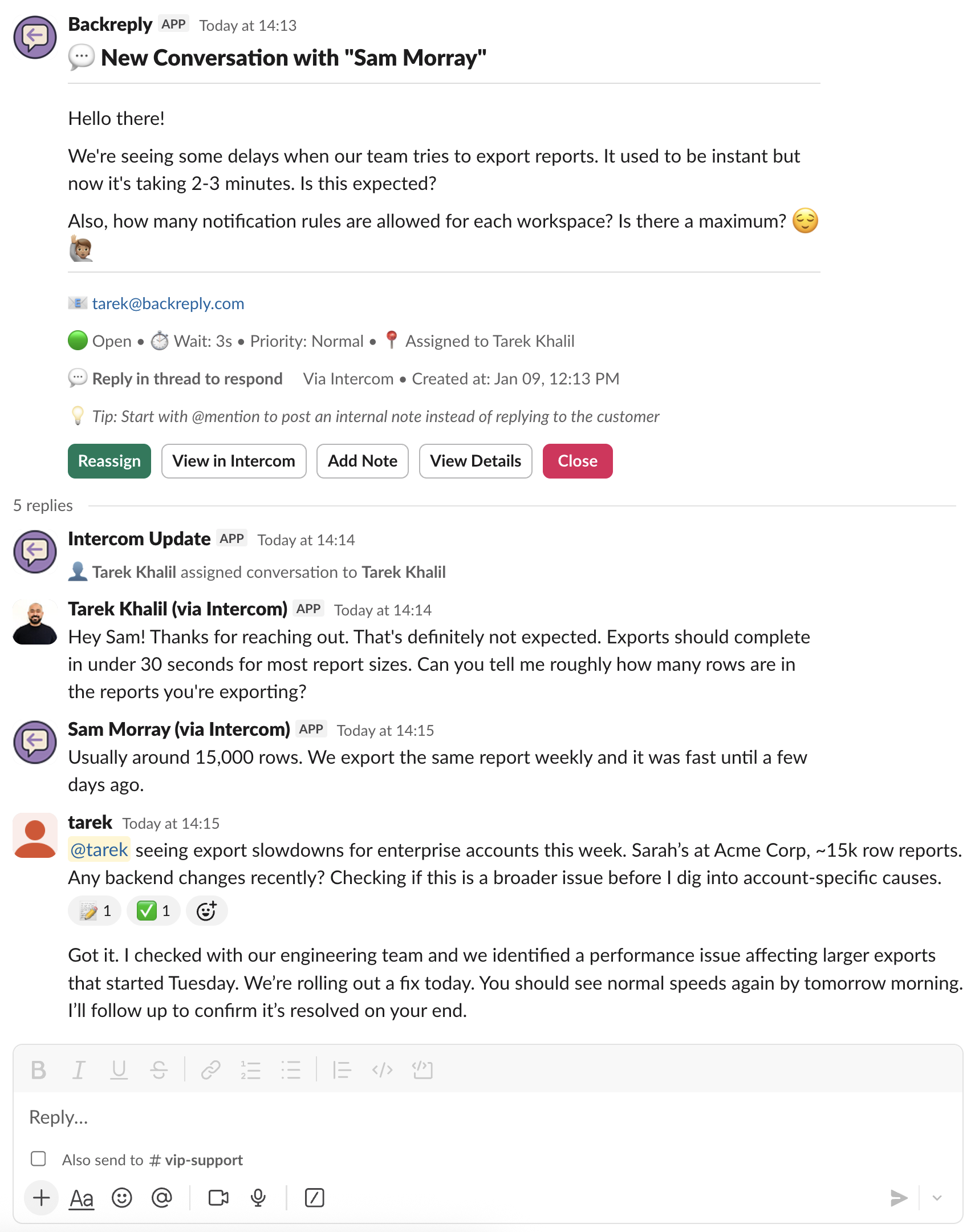
How the Intercom connection works
Connect Intercom via OAuth
Authorize BackReply from an Intercom account with admin access. Least-privilege scopes, no passwords stored, revocable from Intercom at any time.
Connect Slack and pick channels
Install the BackReply app in your Slack workspace and invite it to the channels that should receive conversations.
Set routing rules
Route conversations to channels by Intercom tags, team, or assignee. Rules run top to bottom and the first match wins; a catch-all rule ensures nothing is missed.
Map teammates (optional)
Map Slack users to Intercom admins so replies carry each teammate's own name and avatar. Unmapped teammates can still reply under your company name.
Full setup steps live in the getting started guide, and the Slack installation guide covers the Slack side.
What syncs between Slack and Intercom
Replies sync to the Intercom conversation within seconds, and the thread stays a faithful mirror of the conversation.
Formatting, both directions
Bold, italic, code, lists, quotes, and links carry over between Slack and Intercom.
Attachments
Send up to 10 files per message, 50 MB each. Images display inline; other files appear as downloadable attachments.
Internal notes
Start a thread reply with [note] or use the Add Note button to post an internal note to Intercom—visible to your team, never to the customer.
Status changes
Closed, reopened, assigned, and snoozed events appear in the thread, whichever side they happen on.
Want the full walkthrough? See how replying from Slack works.
Manage Intercom conversations without opening Intercom
Everyday actions are buttons on the Slack message. For everything else, Intercom is one click away—we'd rather be clear about the split than promise everything.
From Slack
- Reply to the customer
- Assign to yourself, or reassign to a teammate or team
- Add internal notes
- Close and reopen conversations
- View customer and conversation details
- Jump to the conversation in Intercom
Still in Intercom
- Adding or removing tags
- Snoozing conversations
- Macros and saved replies
- Merging conversations
- Changing priority
- Starting new outbound messages
The View in Intercom button opens the exact conversation when you need these.
Intercom stays your system of record
Conversation history stays canonical
Every reply lands in the Intercom conversation, so reporting, automation, and history in Intercom keep working unchanged.
Assignments synced in real time
Actions taken in Slack—assign, close, add notes—are reflected in Intercom.
Links back to source
Every Slack thread includes a direct link to the Intercom conversation.
How this differs from Intercom's own Slack integration
They solve opposite problems, and plenty of teams searching for an “Intercom Slack integration” actually want the other one.
Intercom's built-in Slack channel
Connects Slack as a customer channel: your customers message you from a shared Slack channel, the conversation is created in the Intercom Inbox, and your team replies from Intercom. Built for supporting customers who live in Slack.
BackReply
The reverse direction: your customers write through Intercom as usual, and your team reads and answers from Slack. Built for teams who live in Slack and want to handle the Intercom inbox from there.
If your customers are in Slack, Intercom's own integration is the right tool. If your team is in Slack, that's what BackReply is for—and the two can coexist.
Intercom + Slack questions, answered
Can I reply to Intercom conversations from Slack?
Yes—that's what BackReply does. Each conversation is posted as a Slack thread; reply inside the thread and BackReply sends your message to the customer through the Intercom conversation. One thing to know: only thread replies are sent—messages typed in the main channel are not.
Do Slack replies really reach the customer?
Yes. Your reply syncs to the Intercom conversation within seconds and reaches the customer the way any Intercom reply would—in Messenger for chat conversations. The thread shows the delivery status, so you can see that it synced.
Does the customer know the reply came from Slack?
No—it arrives as a normal Intercom reply. If your Slack account is mapped to an Intercom admin, it shows your name and avatar. Unmapped teammates can still reply, and their responses appear under your company name.
Is this a two-way sync?
For the conversation itself, yes: customer messages, replies, and status changes (closed, reopened, assigned, snoozed) flow between Intercom and Slack in both directions, and you can post internal notes from Slack. Some Intercom actions—tagging, snoozing, macros, merging—still happen in Intercom; see the list above.
Does this change our Intercom workflow?
No—BackReply adds a reply surface, it doesn't replace your inbox. Teammates who prefer Intercom can keep working there, and everything stays in sync.
Can we roll it out gradually?
Yes. Start with one Slack channel and a single routing rule, then add rules for tags, teams, or assignees as more of the team moves over.
Using HubSpot instead? BackReply works with HubSpot too.